
Teachable Communities: How to Build an Engaged Student Community

Teachable added a native community feature that lets you create discussion spaces tied to your courses or available as standalone products.
After running a community alongside my courses for 3 months with 47 members, here is the honest guide to setting it up, keeping members engaged, and understanding its real limitations.
Quick Take: Teachable communities work as a basic discussion add-on to your courses. They are functional for simple Q&A and peer support.
They are not a replacement for Circle, Mighty Networks, or Discord if community is a core part of your business model. Use communities when you want to add a discussion layer without managing another platform.
What Teachable Communities Include
| Feature | Details |
|---|---|
| Discussion Threads | Post topics, reply, and comment |
| Spaces | Organize discussions into categories |
| Member Profiles | Basic profiles with name and avatar |
| File Sharing | Upload images and files to posts |
| Notifications | Email notifications for replies |
| Course-Linked | Attach community to specific courses |
| Standalone Product | Sell community access independently |
| Moderation | Basic post approval and member management |
| Available On | All paid plans |
Setting Up Your Community
Step 1: Enable Communities
In your Teachable admin, navigate to the Products section. Create a new product and select “Community” as the product type. Name your community something specific to your niche:
Step 2: Create Spaces
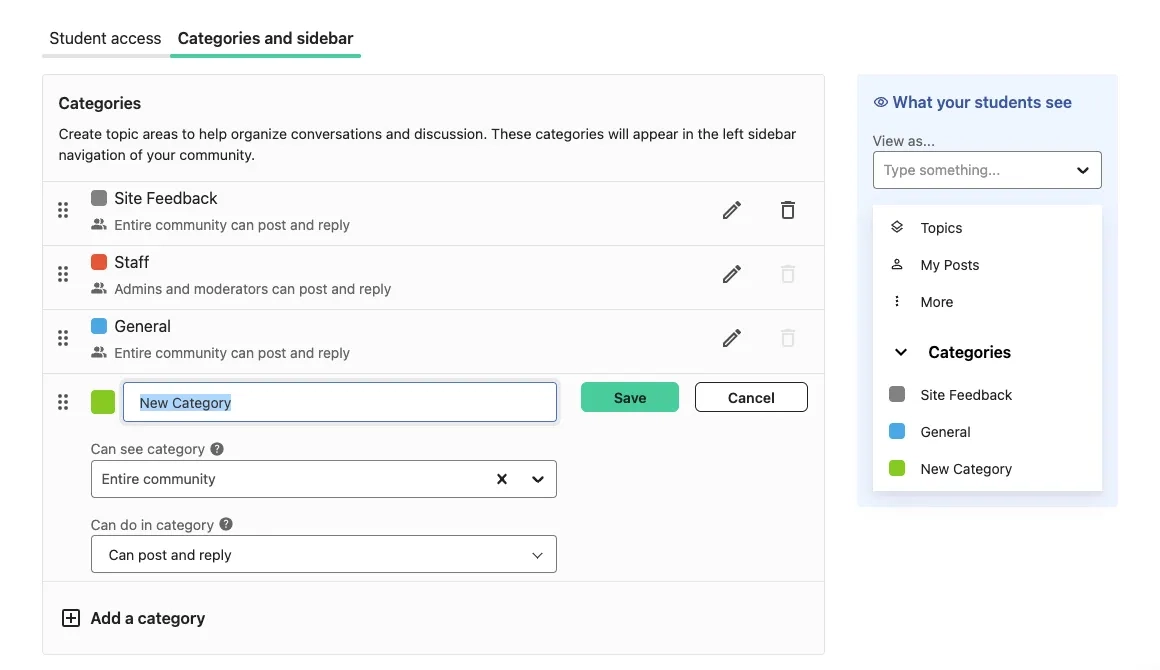
Spaces are the categories within your community. Think of them as channels in Slack or Discord. Create spaces that map to your members needs:
Recommended space structure:
- Welcome and Introductions — Where new members introduce themselves
- Course Q&A — Questions about your course content
- Wins and Progress — Members share their achievements
- Resource Sharing — Useful links, tools, and templates
- General Discussion — Everything else
Start with 3-5 spaces. Too many spaces fragment discussion and make the community feel empty. You can add more as the community grows and conversation naturally segments.
Step 3: Link to Courses (Optional)
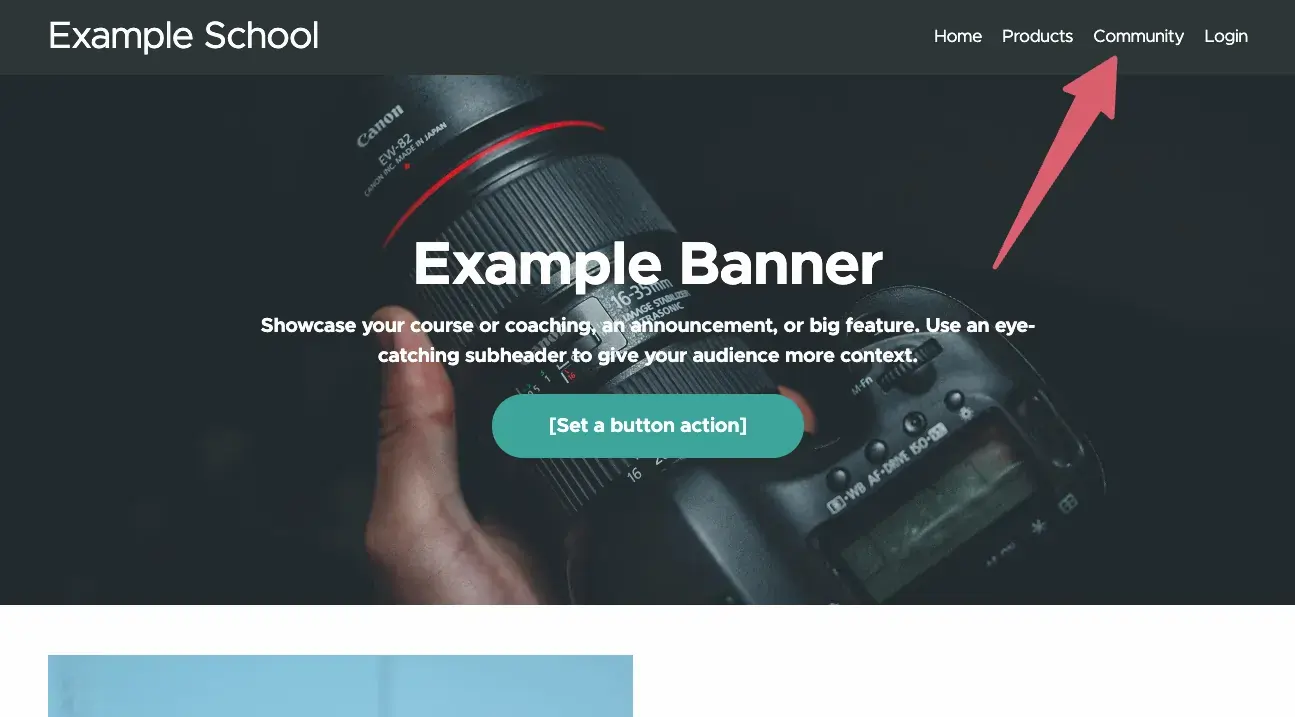
You can link your community to specific courses so that enrolled students automatically get community access. This creates a natural flow from course content to peer discussion.
Navigate to your course settings, find the community section, and select which community to attach. Students will see a “Community” tab in their course navigation.
Step 4: Set Access Rules
Decide how members access the community:
Step 5: Seed Initial Content
An empty community is a dead community. Before inviting your first members, post at least:
This gives new members something to engage with immediately rather than arriving to an empty room.
Engagement Strategies That Worked
After 3 months of running my community, here is what actually moved the engagement needle:
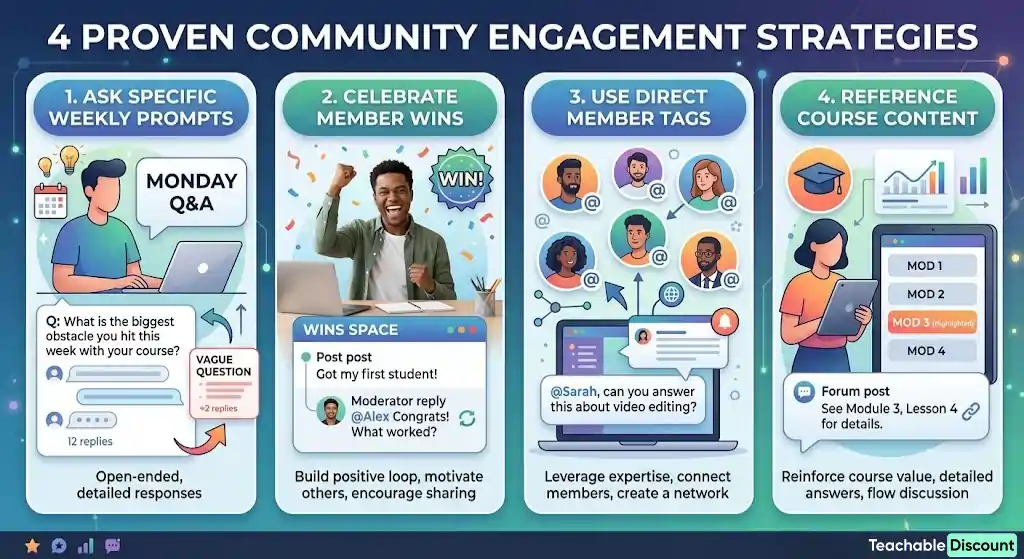
Weekly Prompts
Every Monday, I posted a specific question in the Q&A space. Open-ended questions worked better than yes/no:
Weekly prompts consistently generated 8-15 replies, compared to 2-3 on unprompted days.
Win Celebrations
Creating a dedicated “Wins” space and actively celebrating member achievements drove the most positive engagement. When a member posted about getting their first student or finishing a module, I replied with specific congratulations and asked follow-up questions.
This created a positive feedback loop: members who saw wins celebrated were motivated to share their own, and lurkers became more active.
Direct Tags
When a question came up that I knew a specific member could answer, I tagged them. This distributed the conversation beyond just me responding to everything and helped members connect with each other.
Course Content Callbacks
When students asked questions in the community, I would reference the specific course module that addressed their question: “Great question — Module 3, Lesson 4 covers this in detail. After you review it, come back here and let us know if you need more clarity.”
This reinforced the course content value while keeping the community discussion flowing.
What Did Not Work
Teachable Communities vs Alternatives
| Feature | Teachable | Circle | Mighty Networks | Discord |
|---|---|---|---|---|
| Price | Included in paid plans | $49-399/month | $41-360/month | Free |
| Discussion Threads | Yes | Yes | Yes | Yes (channels) |
| Spaces/Channels | Basic | Advanced | Advanced | Advanced |
| Live Events | No | Yes | Yes | Yes (stages) |
| Direct Messaging | No | Yes | Yes | Yes |
| Mobile App | No (web only) | Yes | Yes | Yes |
| Course Integration | Native | Via integration | Native | Manual |
| Member Directory | Basic | Advanced | Advanced | Basic |
| Analytics | Minimal | Detailed | Detailed | Basic |
| Gamification | No | No | Yes | Bots |
| Custom Branding | Limited | Yes | Yes | Limited |
When Teachable Communities Are Enough
When You Need a Dedicated Platform
For most course creators, Teachable communities are sufficient in the early stages. If your community grows beyond 200 active members or becomes central to your business model, migrate to Circle or Mighty Networks at that point.
For a broader view of platform options, see our Teachable alternatives guide.
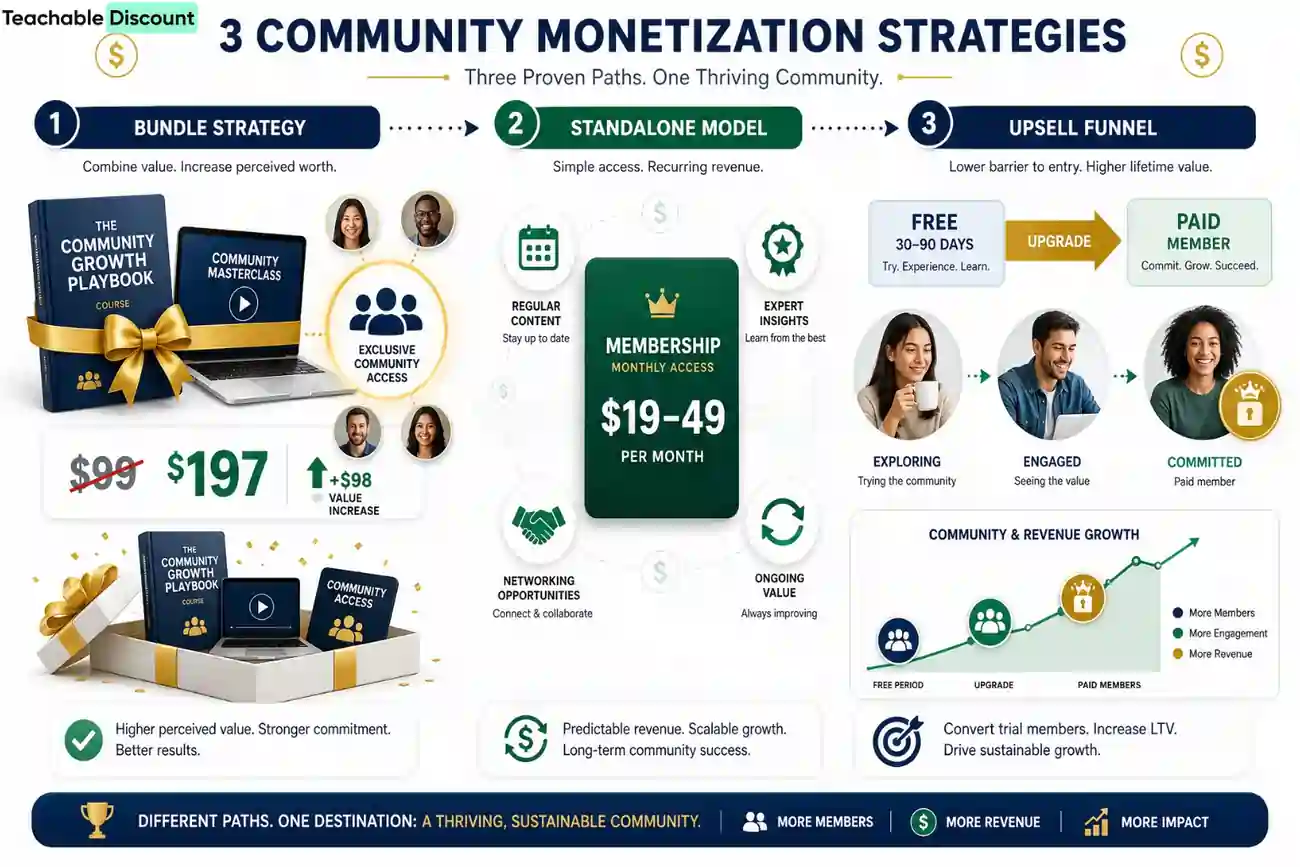
Monetization Options
Technical Setup Tips
Email Notifications
Make sure email notifications are enabled in your community settings. Members who do not receive notification emails forget the community exists within a week.
Moderation Settings
For communities under 100 members, manual moderation (reviewing posts before publishing) is manageable. Above 100, switch to post-publication moderation and address issues reactively.
Mobile Experience
Teachable communities do not have a dedicated mobile app. The web interface works on mobile browsers but is not as smooth as native community apps. Set expectations with your members about the mobile experience.
Is Teachable Communities Worth Using?
For course creators already on Teachable, the community feature adds value at zero additional cost. It creates a space for student interaction, builds loyalty, and can increase course completion rates through peer accountability.
Do not expect it to compete with dedicated community platforms. Use it for what it is — a useful add-on — and plan to evaluate dedicated platforms if community becomes a significant part of your business.

OUR RECOMMENDATIONS


